




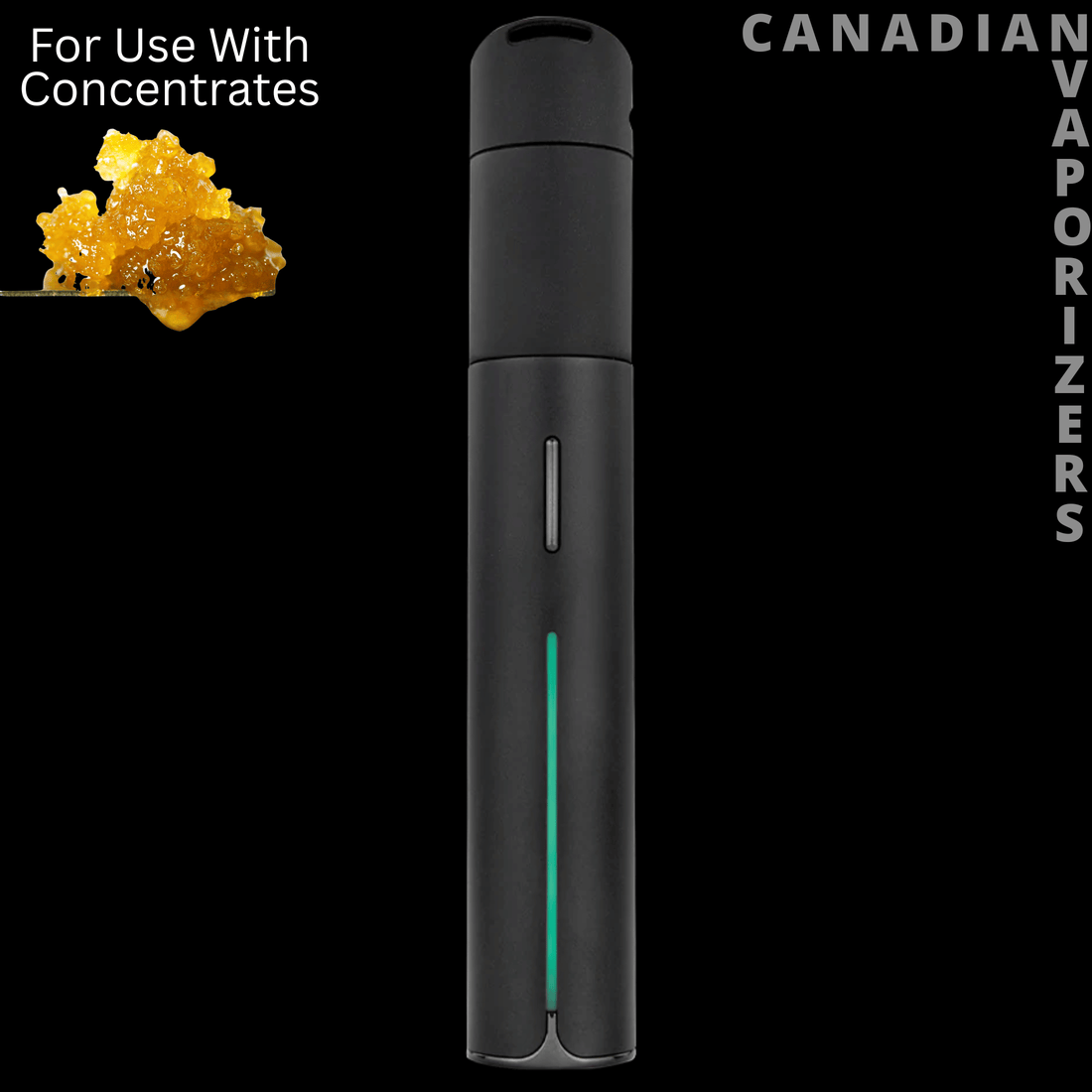


How To Connect Puffco Peak Pro 3DXL To iPhone: Puffco iOS App Tutorial
In today's tech-savvy world, the art of vaping has evolved beyond simple enjoyment. It's about precision, control, and customization, qualities that the Puffco Peak Pro 3DXL embodies perfectly. This guide will walk you through how to connect the Puffco Peak Pro to your iPhone via IOS, a process that unlocks a new dimension of vaping experience.
Preparing Your iPhone for Connection
Before embarking on this digital pairing adventure, ensure your iPhone is ready. Updating your iPhone's IOS to the latest version guarantees compatibility, laying a seamless foundation for the Puffco app to work its magic.
-
 Puffco New ProxyPuffco New Proxy
- Regular price
-
$324.99 CAD - Regular price
-
$349.99 CAD - Sale price
-
$324.99 CAD
Quick view
-
 Red Eye Tek 7.75" Terminator Puffco Proxy BubblerRed Eye Tek 7.75" Terminator Puffco Proxy Bubbler
- Regular price
-
$129.99 CAD - Regular price
-
$149.99 CAD - Sale price
-
$129.99 CAD
Quick view
-
 Red Eye Tek 5" Terminator Puffco Proxy Hand PipeRed Eye Tek 5" Terminator Puffco Proxy Hand Pipe
- Regular price
-
$44.99 CAD - Regular price
-
$49.99 CAD - Sale price
-
$44.99 CAD
Quick view
-
 Red Eye Tek 14mm Terminator Puffco Proxy Pull-OutRed Eye Tek 14mm Terminator Puffco Proxy Pull-Out
- Regular price
-
$29.99 CAD - Regular price
-
$34.99 CAD - Sale price
-
$29.99 CAD
Quick view
-
 Pulsar 4.5" Donut Stax Dry Attachment for Puffco Peak ProPulsar 4.5" Donut Stax Dry Attachment for Puffco Peak Pro
- Regular price
-
$59.99 CAD - Regular price
-
- Sale price
-
$59.99 CAD
Quick view
-
 Puffco Pivot Mouthpiece AttachmentsPuffco Pivot Mouthpiece Attachments
- Regular price
-
From
$29.99 CAD - Regular price
-
$39.99 CAD - Sale price
-
From
$29.99 CAD
Quick view
-
 Puffco New Proxy WizardPuffco New Proxy Wizard
- Regular price
-
$149.99 CAD - Regular price
-
$159.99 CAD - Sale price
-
$149.99 CAD
Quick view
-
 Puffco New Proxy BubPuffco New Proxy Bub
- Regular price
-
$149.99 CAD - Regular price
-
$159.99 CAD - Sale price
-
$149.99 CAD
Quick view
-
 Puffco New Proxy 3D ChamberPuffco New Proxy 3D Chamber
- Regular price
-
$79.99 CAD - Regular price
-
$89.99 CAD - Sale price
-
$79.99 CAD
Quick view
-
 Universal 510 Thread ChargerUniversal 510 Thread Charger
- Regular price
-
$4.99 CAD - Regular price
-
$2.99 CAD - Sale price
-
$4.99 CAD
Quick view
-
 Puffco PivotPuffco Pivot
- Regular price
-
$179.99 CAD - Regular price
-
$209.99 CAD - Sale price
-
$179.99 CAD
Quick view
Turning On Bluetooth on Your iPhone
With the app installed, navigate to your iPhone's settings to enable Bluetooth. This is crucial for the pairing process, as it allows your phone to discover the Peak Pro.
Step By Step Guide
Below are Step By Step Screenshots on how to download the Puffco Peak Pro App for IOS on iPhone.
Step 1. Go To App Store | Step 2. Download Path Browser | Step 3.Open App | Step 4: Search: www.puffco.app
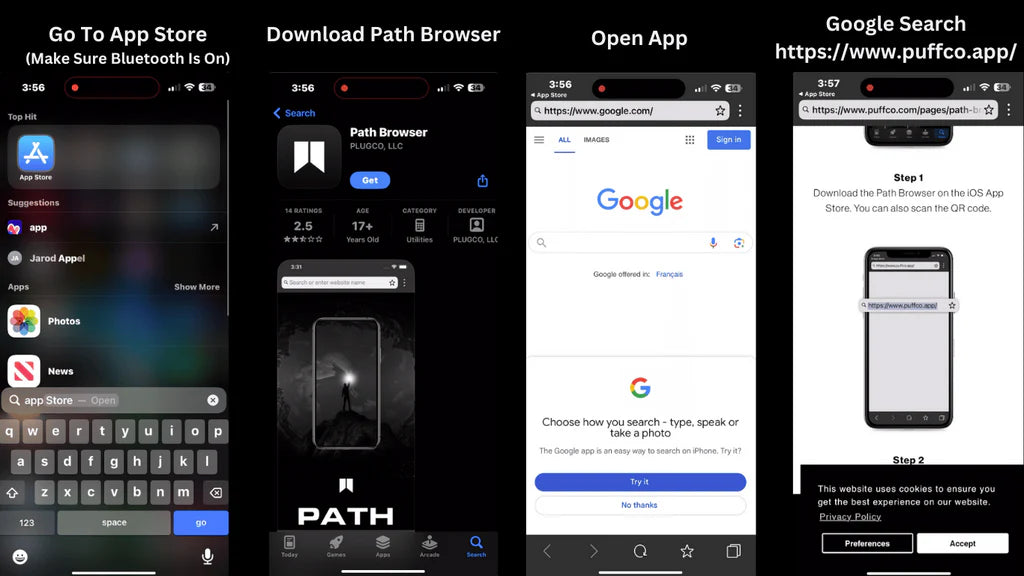
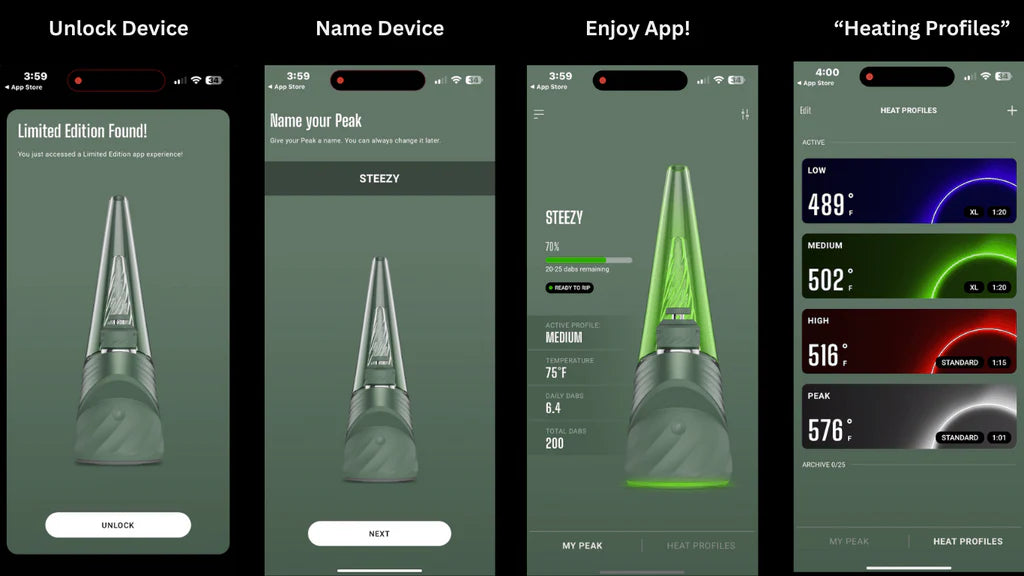
Steps 5 / 6 / 7 / 8 To Connect Your Puffco Peak Pro To IOS iPhone
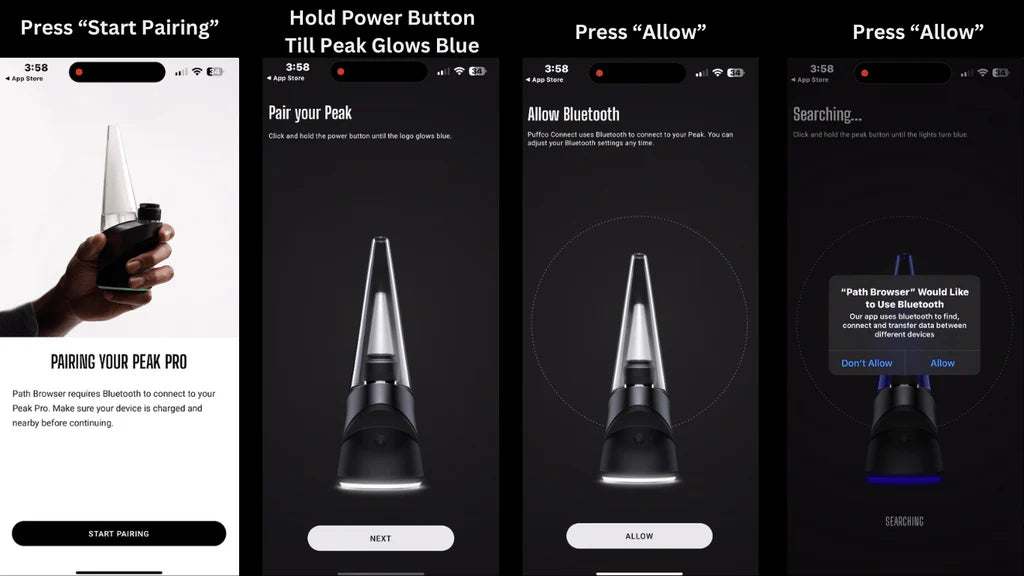
Steps 9 / 10 / 11 / 12 To Connect Your Puffco Peak Pro 3DXL To IOS iPhone
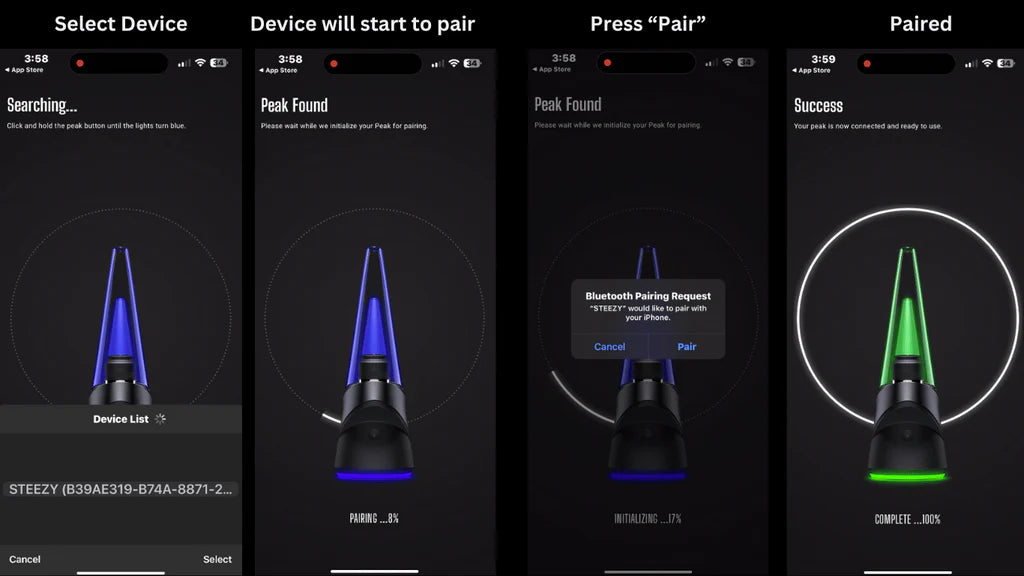
Steps 13 / 14 / 15 / 16 To Connect Your Puffco Peak Pro To IOS iPhone
Understanding the Puffco Peak Pro 3DXL
The Puffco Peak Pro 3DXL stands as a pinnacle of vaporizer technology, offering users an unparalleled experience. Its Bluetooth connectivity is not just a feature but a gateway to a customizable vaping journey. The Path Browser App on IOS allows your Puffco device to become an extension of your iPhone, offering control and insights that were previously unimaginable.
Optimizing Your Experience
Through the app, you can adjust temperature settings, session duration, and explore various features to enhance your vaping experience. It's about making the Peak Pro truly yours.
Troubleshooting Common Connection Issues
Should you face any hiccups during the connection process, the guide offers solutions to common issues like the device not appearing in Bluetooth settings or unstable connections.


